Low Poly 3D
Workflow3 min read
How to Get Clean Low Poly 3D Models from a Single Reference Image
Why single-image 3D generation melts thin details or invents noisy undersides—and how framing, lighting, and smart triangle targets give you clean game-ready meshes.
Why reference framing decides 80% of mesh quality
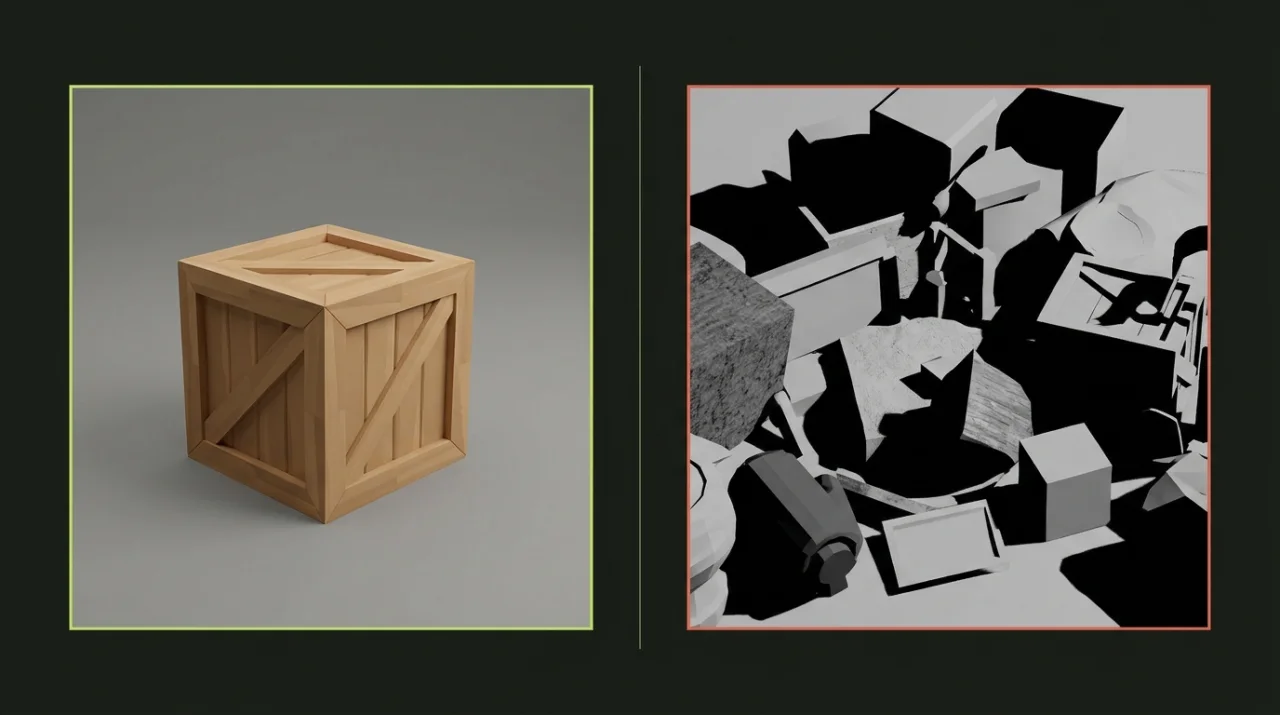
When users hit messy surfaces or floating blobs in Image to 3D, they usually blame the triangle budget or try regenerating five times with the exact same picture. In reality, single-view reconstruction has to infer the hidden back, bottom, and occluded pockets strictly from the cues inside your reference image.
Clean source framing removes ambiguity before generation even starts:
| Reference Problem | What Breaks in the Generated GLB | Better Input Habit |
|---|---|---|
| Cluttered desk, foliage, or shadow floor | Background objects fuse onto the mesh base | Place object on plain solid or light backdrop |
| Extreme top-down or flat side profile | Back side stretches or flattens awkwardly | Shoot at a 30°–45° three-quarter angle |
| Dramatic rim light or dark crushed shadows | Shadow edges bake as permanent dark paint | Use soft, even lighting with readable colors |
| Cropped corners or overlapping hands | Missing edges close into blobby patches | Leave generous padding around the whole silhouette |
Input specs and angle rules that work reliably
For best results in Image to 3D (which accepts PNG, JPEG, or WebP files up to 9 MiB, minimum 256 px short edge, and maximum 4,096 px long edge):
- One focal prop per frame: Avoid multi-item scenes or wide dioramas in a single upload. Generate each prop separately, then assemble them in your engine.
- Clear silhouette separation: Strong contrast between the object and background helps isolate crisp low-poly planes cleanly.
- Avoid paper-thin floating ribbons: Delicate leaves, wires, or dangling chains often thicken or break during reconstruction. Favor chunky, readable silhouettes built for low-poly shading.
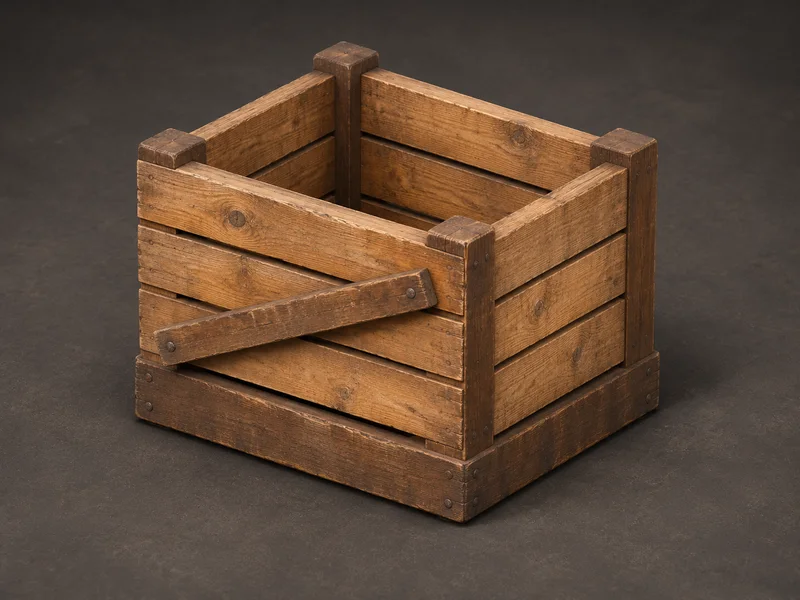
If you do not have a photo or concept sketch ready, start with a text prompt in the AI 3D Generator to create and pick a clean concept view first before converting to 3D.
Choosing between 1,500, 3,000, and 6,000 triangle targets
The generator supports triangle budgets from 500 to 20,000, with presets at 1,500, 3,000, and 6,000 triangles. Pushing the slider to maximum rarely makes a low-poly prop better—excess polygons just add lumpy noise on flat planes that look cleaner at lower counts.
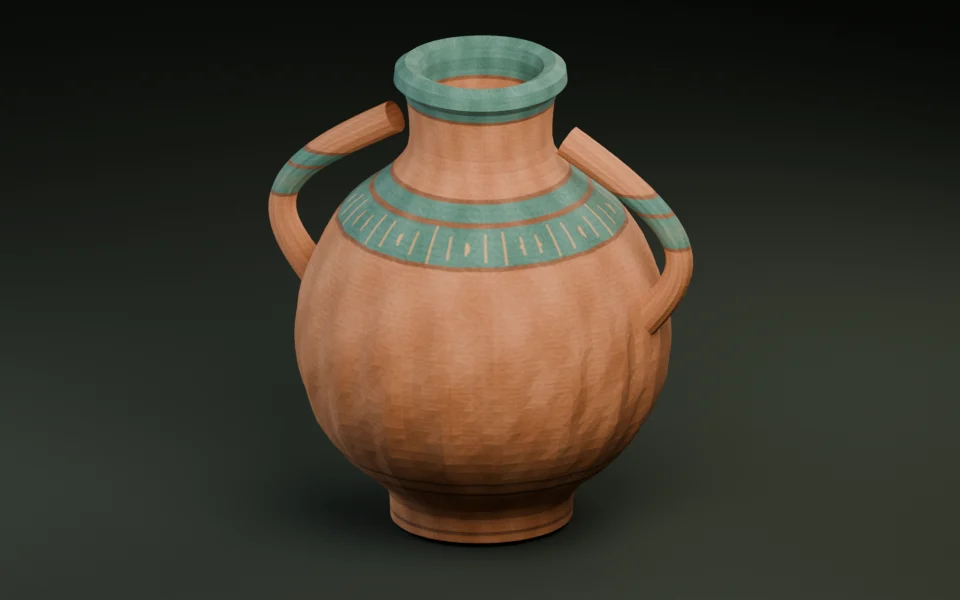
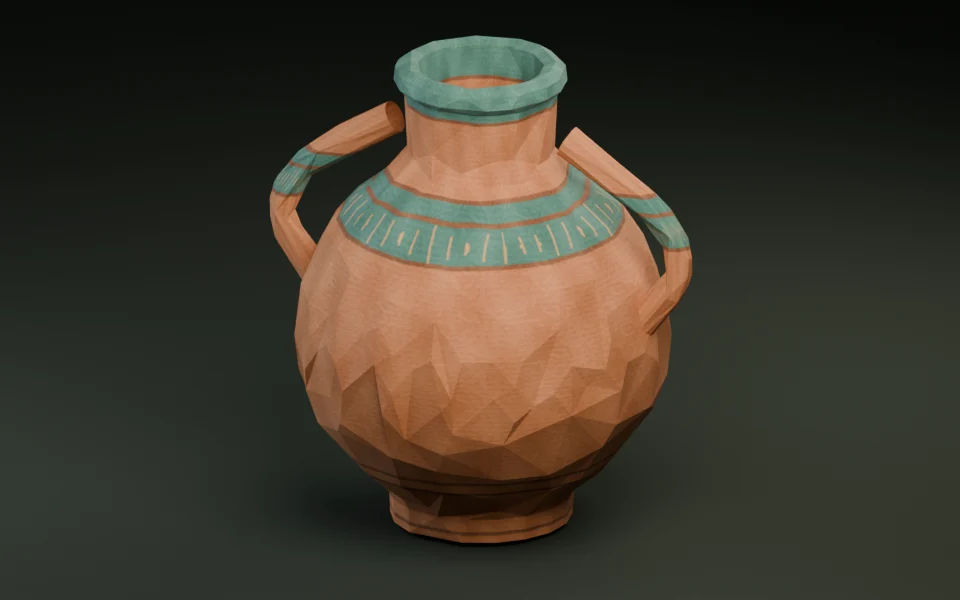
- 1,500 triangles: Crates, potions, jars, boulders, signposts, and background street clutter.
- 3,000 triangles: Barrels with straps, lanterns, camp stoves, furniture, and medium interactive props.
- 6,000 triangles: Hero equipment, statues, shrines, or multi-part architectural centerpieces viewed up close.
Post-generation triage: inspect, ground, and decimate
Treat every newly generated .glb like raw studio geometry—run a quick two-minute pass through our browser tools before dropping it into your level:
- Open the downloaded file in the GLB Inspector to verify triangle count, UV presence, embedded texture size, and real-world dimensions.
- Run Polygon Reducer if flat panels carry unnecessary edge loops or if you want a tighter
800–1,500triangle tier for distant scatter. - Anchor the pivot to
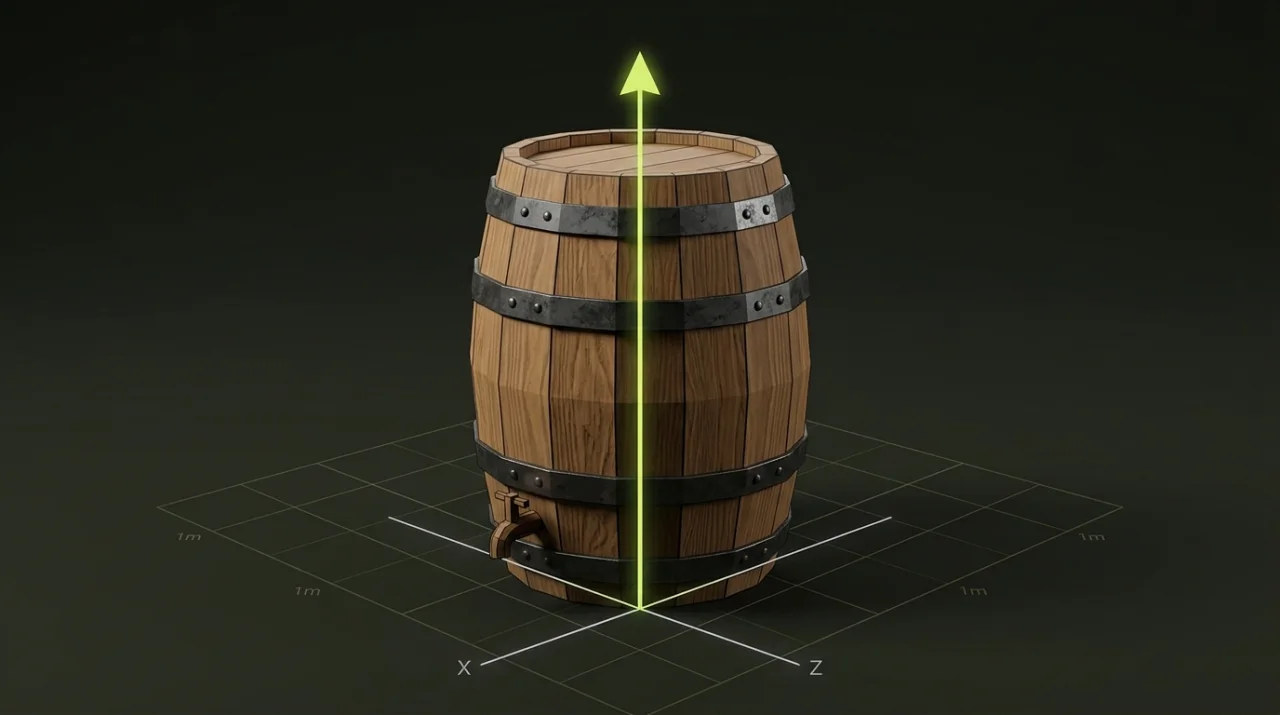
bottomand fix any rotation offset in Origin & Transform so the prop drops cleanly onto terrain without sinking.
Ready to automate the cross-engine handoff? Check Preparing Low Poly GLB Files for Godot, Unity, and Three.js.