Low Poly 3D
Pipeline3 min read
Preparing Low Poly GLB Files for Godot, Unity, and Three.js
One self-contained GLB checklist for Y-up orientation, meter scale, ground-center pivots, vertex attributes, and material parity across Godot 4, Unity, and the web.
Why props look fine in one viewer and break in another
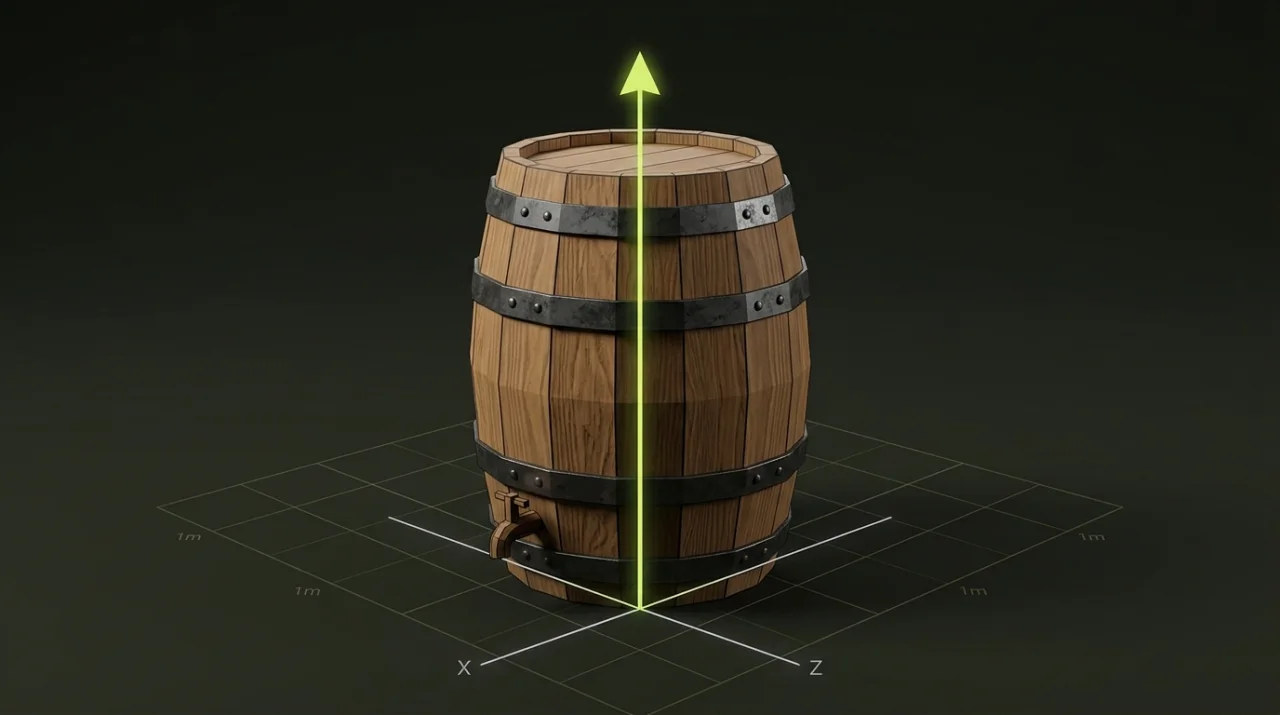
A .glb file rarely fails completely across engines—instead, it fails quietly. A barrel imports fine in Three.js yet faces sideways when spawned along a forward vector in Unity, or looks 100× too big in Godot because someone exported centimeters from an authoring tool. Standardizing every asset once before adding it to your project repository eliminates per-scene band-aids.
Engine comparison table: Godot 4, Unity, and Three.js
Even though all three engines converge on 1 unit = 1 meter and Y-up, their forward axes and importer pipelines differ slightly. Design your base GLB around the shared glTF 2.0 conventions below:
| Property | glTF 2.0 / Three.js | Godot 4 (Native) | Unity (glTFast / Import) |
|---|---|---|---|
| Up Axis | +Y | +Y | +Y |
| Unit Scale | 1 unit = 1 meter | 1 unit = 1 meter | 1 unit = 1 meter |
| Facing / Front | +Z forward | -Z forward | +Z forward |
| Embedded Materials | Metallic-Roughness PBR | Auto-converts to StandardMaterial3D | Maps to URP/HDRP Lit via glTFast |
| Best Pivot Rule | Ground-center (Y = 0) for props | Ground-center (Y = 0) for terrain snap | Ground-center (Y = 0) for prefab scatter |
Keep directional props consistent inside your own library. If you use
+Zor-Zas the front face of signs, carts, and doors, apply that rule uniformly so placement scripts never need special-case rotation tables.
Standardize scale, rotation, and pivot in one pass
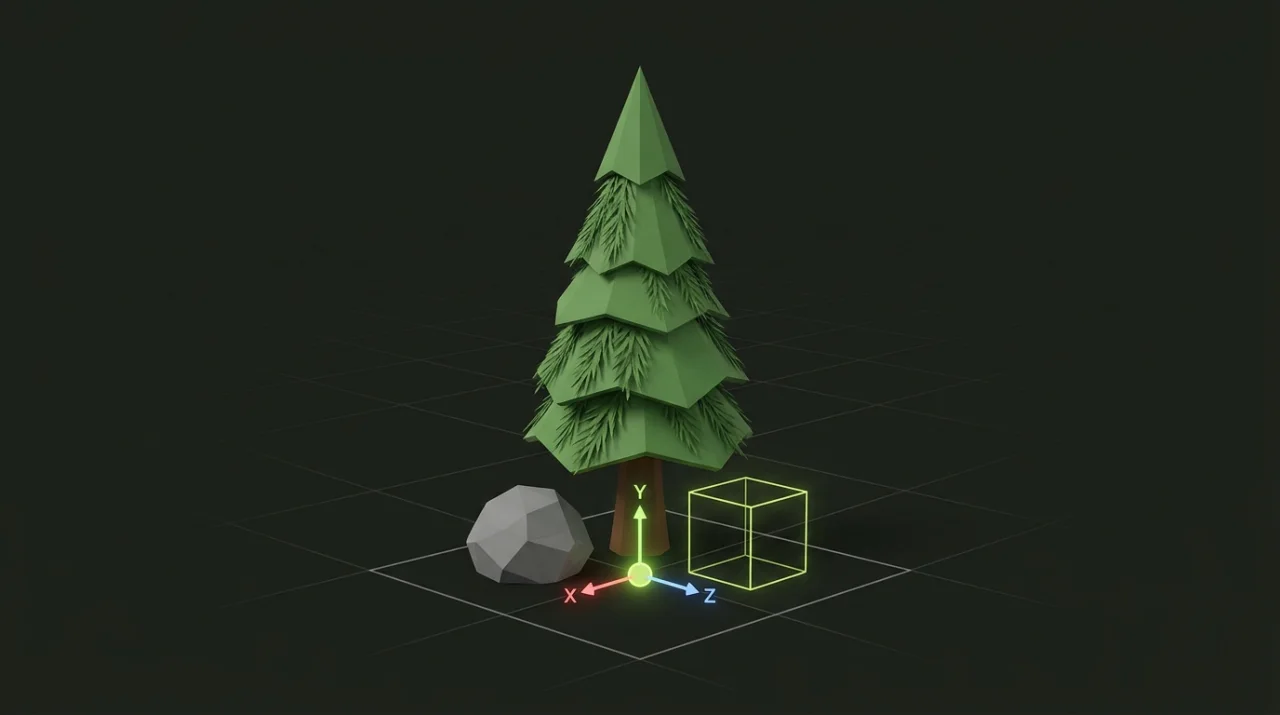
Instead of booting a heavyweight desktop DCC suite just to nudge a pivot or flip a rotated export, open the .glb locally in Origin & Transform:
- Pick the right pivot preset: Use
bottomfor ground-anchored props (trees, fences, barrels, buildings),centerfor floating pickups or spinning objects, andtopfor ceiling-mounted lanterns or hanging signs. - Fix quarter-turn rotations: Apply exact
±90°turns on X, Y, or Z to correct Z-up exports or align every directional prop to the same forward axis. - Bake cleanly: Export a fresh self-contained
.glbwith normalized geometry coordinates rather than relying on parent transform hacks.
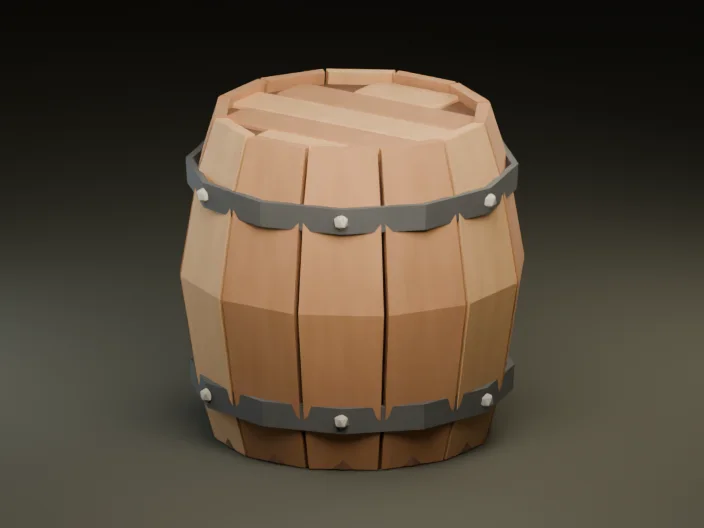
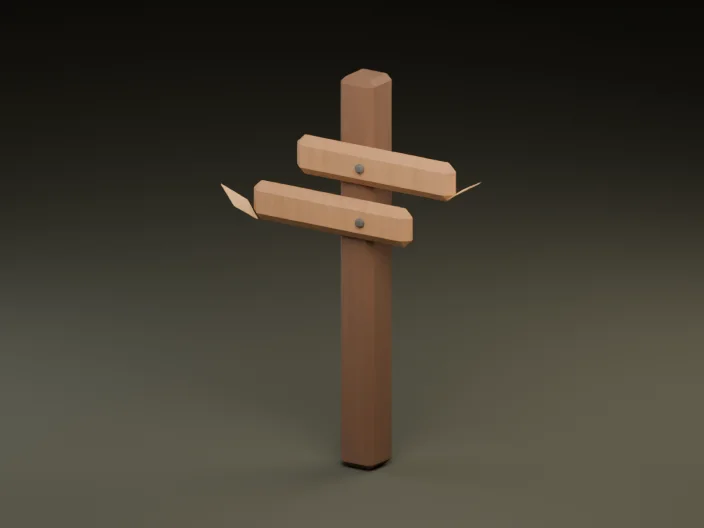
Check geometry health before committing to version control
Before checking a prop into Git or dropping it into a shared asset folder, open it in the GLB Inspector (supports files up to 30 MiB and 250,000 triangles completely client-side) and confirm five green lights:
- Dimensions in meters: Sanity-check width, height, and depth against real life (a barrel around
~0.9 mtall, a pine tree~3 mtall, a doorway taller than2.1 m). - Normals present: Missing vertex normals trigger smooth-shading glitches or pitch-black faces under dynamic lights.
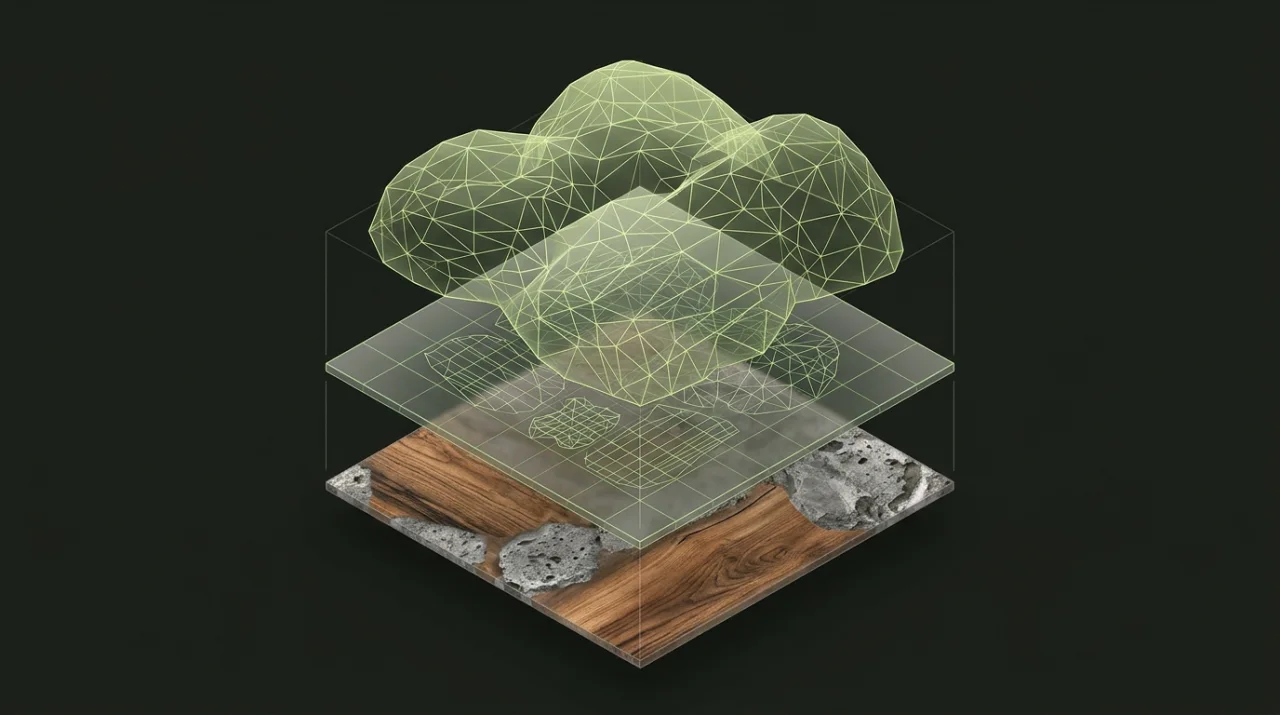
- UVs verified when textured: Ensure UV coordinates exist whenever a prop carries embedded baseColor or detail textures.
- Zero external file paths: A true self-contained
.glbpacks images inside the binary container so it never breaks with missing.binortextures/folders on teammates machines. - Reasonable triangle & byte footprint: Trim bloated meshes with Polygon Reducer and generate mid/far levels via the LOD Generator before duplicating prefabs across levels.
Want to make sure all of those standardized props also look like they belong in the same world? Continue to Keeping Mixed Low Poly Props Consistent in One Game Scene.