 Low Poly 3D
Bottom center
Aligns Y = 0 to the lowest vertex and centers X and Z. Best for trees, rocks, furniture, buildings, and props that rest on floors or terrain.
Set the model origin and rotate around the X, Y or Z axis. Files stay in this browser.
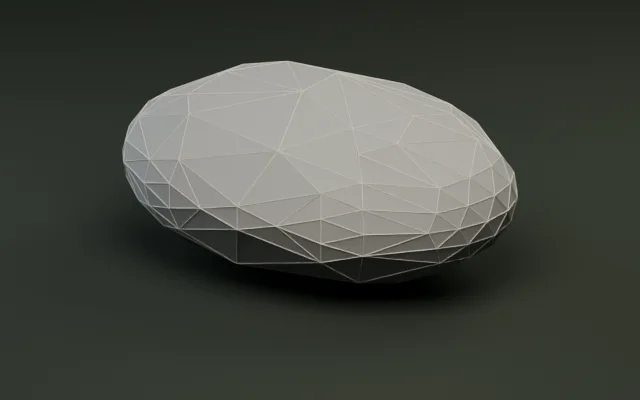
Simplify meshes by target count or percentage.
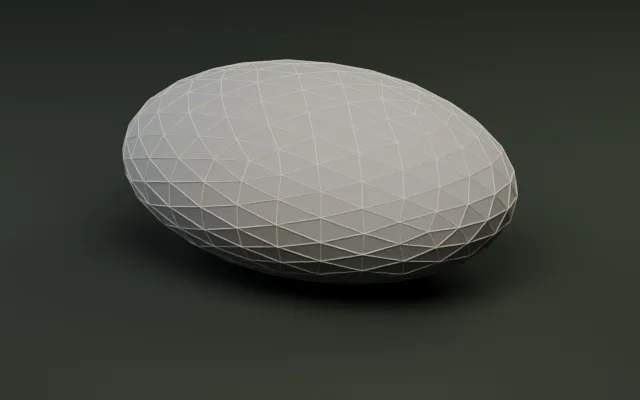
Audit triangles, meter bounds, and embedded textures.
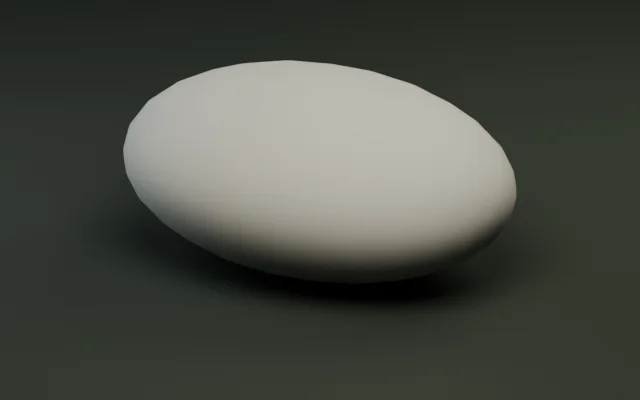
Generate multi-level LODs and export as a ZIP.
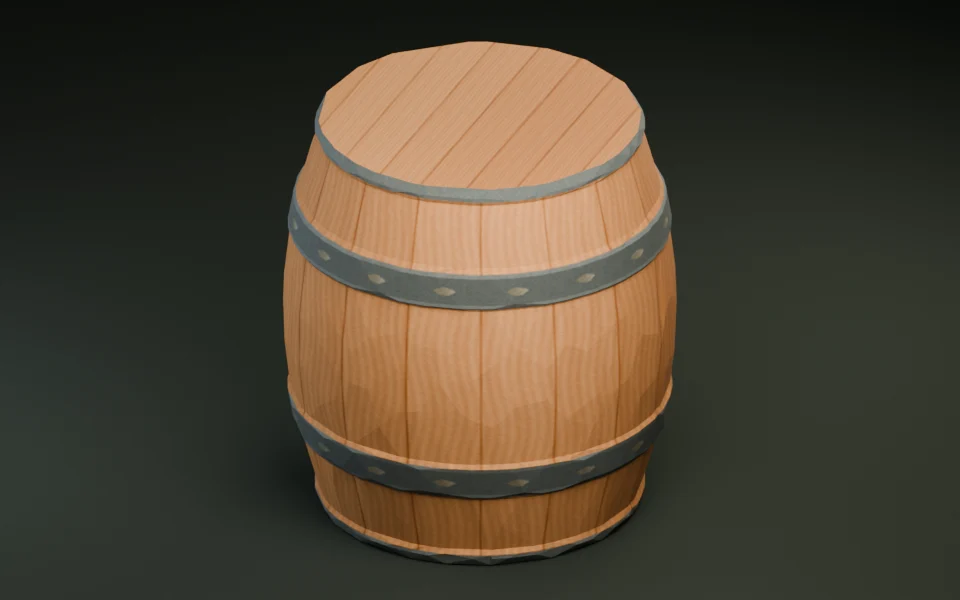
Shrink GLB bytes with Meshopt and WebP textures.
Convert static GLB and OBJ meshes with diffuse textures.
Convert a print mesh and check its dimensions in meters.
Convert static, solid-color FBX props with baked transforms.
Create a textured GLB from a reference image or a short prompt.
Adjust the origin point and fix Y-up orientation for static glTF 2.0 binary (.glb) models in three steps, completely client-side.
Drop any static GLB file up to 30 MiB and 250,000 triangles. Geometry, materials, and embedded textures stay in your browser with zero server uploads.
Use a preset like Bottom center, click directly on the 3D mesh to set the origin, or enter exact X, Y, and Z meters and ±90° axis turns.
Compare original and transformed bounds side by side with live RGB axis gizmos, then download a clean GLB ready for your game engine.
glTF 2.0 uses a right-handed Y-up coordinate system (+X right, +Y up, -Z forward) measured in meters. Matching the pivot to how an object is placed prevents floating props and misaligned rotations.
Aligns Y = 0 to the lowest vertex and centers X and Z. Best for trees, rocks, furniture, buildings, and props that rest on floors or terrain.
Places (0, 0, 0) at the geometric midpoint of the bounding box. Ideal for collectibles, pickups, orbs, and objects that spin in place.
Snaps Y = 0 to the highest point of the mesh. Designed for ceiling lights, hanging signs, stalactites, and overhead fixtures.
Click any surface point on the 3D model or type exact meter coordinates for door hinges, weapon grips, wheel hubs, and modular snap sockets.
Models exported from Z-up tools often arrive tipped on their side in Godot, Unity, Unreal Engine, or Three.js. Apply a single -90° or +90° turn around X, Y, or Z to apply the upright rotation and origin directly to the exported GLB before importing.
Every export verifies that triangle counts, material slots, mesh instances, and embedded textures match the source GLB while updating world-space bounds cleanly.
| Operation | Input state | Resulting origin / up axis | Geometry & materials | Common use case |
|---|---|---|---|---|
| Bottom center snap | Floating or offset prop | Min Y = 0.00 m · X/Z centered | 100% unchanged | Trees, rocks, fences, buildings resting on terrain |
| Center of bounds | Off-center pickup | (0, 0, 0) at bbox midpoint | 100% unchanged | Spinning collectibles, projectiles, inspectable items |
| Top center snap | Ceiling fixture | Max Y = 0.00 m · X/Z centered | 100% unchanged | Hanging lanterns, ceiling beams, stalactites |
| X -90° / +90° turn | Z-up CAD / Blender export | Aligned to glTF +Y up, -Z forward | 100% unchanged | Fixing models tipped 90° on their side in Godot/Unity |
| Click-to-pick surface | Hinge or socket prop | Origin at raycast hit point (m) | 100% unchanged | Swinging doors, levers, wheel hubs, modular snap points |
All transforms are applied inside a clean root transform node and re-measured with getBounds() before download so RGB axes preview matches engine import.
Fixing Z-up orientation and ground-plane pivots in glTF 2.0 before import avoids wrapper nodes and broken snapping inside your scene tree.
Right-handed Y-up (+Y up, -Z forward)
Matches glTF 2.0 natively. Bottom-center props drop directly onto GridMap or Terrain3D at Y = 0 with zero offset.
Left-handed Y-up (+Y up, +Z forward)
glTFast handles handedness automatically. Setting a clean bottom-center pivot prevents floating prefabs on terrain placement.
Left-handed Z-up (converted on import)
Unreal converts standard glTF Y-up models into Z-up on import—fixing tipped Z-up GLBs to standard Y-up first ensures consistent rotation.
Right-handed Y-up (+Y up)
Matches glTF 2.0 1:1. Aligning pivot to Bottom center or Center of bounds simplifies orbit camera framing and placement.
No. Parsing, bounding-box calculation, coordinate translation, rotation, and GLB re-packing all run locally inside a browser Web Worker. Files up to 30 MiB never leave your device.
Pivot & Rotation supports uncompressed static glTF 2.0 binary (.glb) files up to 30 MiB and 250,000 triangles or vertices. Files with skins, animations, morph targets, external URIs, or pre-compressed extensions must be exported as static uncompressed GLBs first.
glTF 2.0 uses a right-handed Y-up coordinate system in meters: +X points right, +Y points up, and -Z points forward. Rotating ±90° around X, Y, or Z converts Z-up exports cleanly.
Use Bottom center for terrain and floor props (trees, crates, walls) so Y = 0 sits flush on the ground; use Center of bounds for spinning pickups or floating items; use Pick on model when a door hinge, lever, or modular corner needs an exact surface pivot.
No. Pivot & Rotation intentionally handles origin translation and exact ±90° orthogonal axis turns without rescaling vertex dimensions. If a model was exported 100× too large in centimeters, apply unit scale in Blender before exporting.
Yes. Embedded textures, PBR materials, UV coordinates, and vertex normals remain intact under the updated scene transform so shading stays accurate.
When Pick on model is active, clicking anywhere on the 3D preview raycasts the exact surface point and moves the origin there, updating the X, Y, and Z meter inputs in real time.
No. This tool is built for static GLB meshes. If a model includes skeletal skinning or keyframe animations, adjust its origin in Blender or your DCC tool before rigging.